Your Weekly Resident Newsletter from Venture Out at Mesa
Published on Oct. 24, 2025

Your Weekly Newsletter

Welcome to another edition of your weekly newsletter, Venture Shout!

The south side shower at the EPC is closed for tile repairs. We will let you know when it is available again.

Our New Website

We’d like to thank everyone for their patience as we continue transitioning to the new website and HOA Portal. Just a quick reminder, the HOA Portal is a separate website that’s managed by Enumerate Engage, not Venture Out staff. Read about their differences here.

This week’s newsletter is all about our main website: ventureoutmesa.com.

LIVE CHAT HELP
You may have noticed a blue talk bubble at the bottom of each web page. That is a live support button. It will be active for one more week. Feel free to ask questions. Some responses might be instant and other might take a couple of days so be sure to include your email address when prompted, as delayed replies will go to your email. This is not AI but a human response. See image below for example. Actual chat bubble is in the bottom right corner.

live chat bubble

Frequently Asked Questions

I am a renter, why can’t I log in?
We apologize. You only get an account if you’re a current property owner at Venture Out.

You can still access useful information without a log in.

I’m a property owner, why can’t I log in?
As of today, all website access requests approved by the Front Office have been processed.
Many residents who submitted requests already had existing accounts. If you’re unable to log in, please enter your email and click “Forgot password?” to reset your login. If you still have trouble after resetting your password, contact the Front Office to confirm your account email.

I’ve requested access and still can’t get in
There is a high likelihood that you are requesting with an email that is already in the system. We are seeing a large number of couples who are trying to use one email for two separate accounts. Your email is tied to your login and each profile must have a unique email address. 

Only current Venture Out property owners can log in to the community website. Renters and non-property owners do not have access.

If you’re a property owner and unable to log in, please complete the Website Access Request form. Once your ownership is verified, you’ll receive instructions on how to create your password and access your account.

Why can’t I enter both mine and my partner’s name?
You might see that some have, however there is a character limit and this system was not designed for two people. Ideally, each person has their own profile. Couples who have edited their profile to include “&” will soon see the “&” removed and names might display as George Marie Williams and not George & Marie Williams. There is a section in the profile to list your partner or roommate’s name. And again, each person should have their own profile.

Why can’t I the pages you’re talking about?
The menu changes if you are logged in. If you are not logged in, you cannot see the full menu. The pages that are restricted are the Resident Network, Condo and Social Board pages, Financials, and Meeting and Agenda archives. These are pages relevant to property ownership, which is also why renters do not have login credentials. 

Digital Bulletin Boards vs. Classified Ads

Let’s clear up the difference!

  1. Sign-In Required
    To use either one, you must sign in to the website.
    You can only sign in if you have an account, and
    you only get an account if you’re a current property owner at Venture Out.
  2. What’s a Digital Bulletin Board?
    It’s really just another word for a forum, a place to talk with other residents.
    We didn’t call it a “Forum” because that word looks too much like “Form,”
    and we didn’t want anyone to think it was a form to fill out!

You can use the Digital Bulletin Board to share ideas, ask questions, or start a discussion,
but not to sell things. Please note that if you post items for sale in the Bulletin Boards, it will be removed.
Please only post items for sale, free items, rentals in the Classifieds. 

  1. What about Classified Ads?
    That’s the place to buy or sell items, just like the classifieds in a newspaper.
    If you want to list something for sale, post it under Classified Ads, not the Bulletin Board.

To create a Classified Ad:

  • Log in to the website.
  • Under RESIDENTS in the main menu, click Classified Ads.
  • Click the “Create a Classified Ad” button.

To post on the Digital Bulletin Boards:

  • Log in to the website.
  • Under RESIDENTS in the main menu, click Digital Bulletin Board.
  • Click on the board you would like to post in.
  • Click the “New discussion” button.

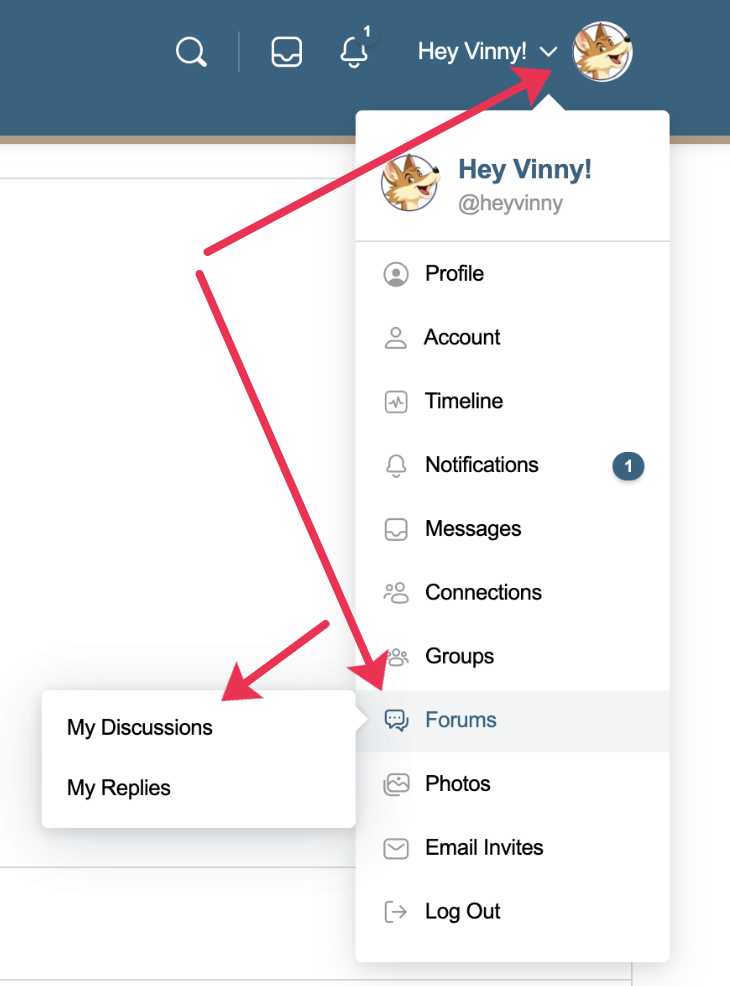
You can also create a forum, or manage your post from your profile. 
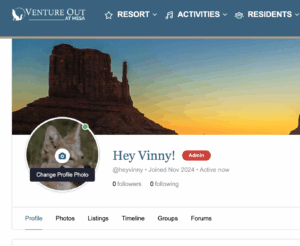
Log in to the website and clicking on your profile picture.
Go to FORUMS (See image below).

Club and Group Updates

Clubs are updated by authorized Club Representatives using the online form at the bottom of the Clubs page. 

Groups are updated by the Activities Office.

Please submit your Club updates by Wednesday at 3PM so we can do our best to have them online by Friday afternoon.

Any submissions received after Wednesday at 3PM will be posted the following Friday.

Please draft your entires on a Word or text doc before submitting. This way, you have a copy, and you can check spelling and grammar. Please avoid multiple submission per week. 

Important Notes for Club Updates

  • When you format your entry, we cannot see your line breaks. We’ll do our best to match your layout, but it may look a little different once posted.

  • When submitting updates, please clearly note what should be added, removed, or kept.
    We only remove information that is obviously outdated, unless you tell us otherwise.

  • If your update includes a large amount of text, we’ll add a “Keep Reading” button to keep the page layout from breaking.

  • Each Club may display up to 8 photos, 1 main photo that you see on the main Club Page and 1 flyer, located at the top of the Club’s individual page. If you do not have a flyer, we will use your main club photo in its place.  If you send new photos after already reaching 8, we’ll replace the current ones with your new submissions.

Patrol Appointment Reminder

A quick reminder to please use the app we’ve set up to schedule appointments with Patrol. This system has greatly reduced wait times and helped minimize the number of residents waiting in the lobby.

Scheduling your visit in advance ensures a smoother experience for everyone, thank you for helping make this process work so well! You can easily schedule your appointment from the Patrol web page, click here. 

Searching for Users in the Digital Directory

Step 1: Click Sign In in the top right corner of ventureoutmesa.com.

Step 2: Click on Resident Network in the main navigation under RESIDENTS.

Step 3: Click on the DIGITAL DIRECTORY button at the top of the network page. 

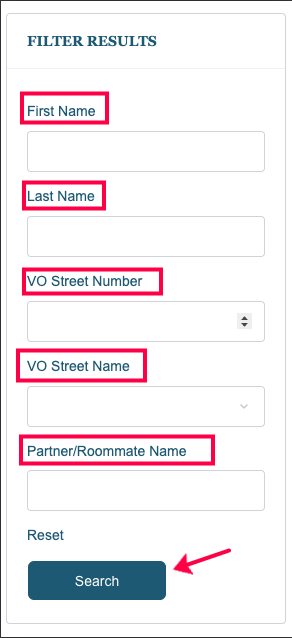
Step 4: Use the search filter to search by first name, last name, street number, street name, or someone’s partner/roommate’s name. 

Step 5: HIT SEARCH.

If you are making multiple searches, hit “reset” above the search button after each one. 

Please note: Only current property owners will be allowed to log in to the website. We are still processing Website Access Request forms (form below under Quick Reminders – Signing in – website). Each profile must use a separate email address. We see couples trying to sign up with the same email and we cannot create those accounts. Each use must have a unique email address.

Image above is of the SEARCH FILTER on the Digital Directory page.

Read the Support Articles below for more

Quick Reminders

Signing In - Website

Only current Venture Out property owners can log in to the community website. Renters and non-property owners do not have access.

If you’re a property owner and unable to log in, please complete the Website Access Request form. Once your ownership is verified, you’ll receive instructions on how to create your password and access your account.

Our new website has a Clubs and Groups hub features individual pages for each Club and sections for each Group to share information, announcements, times, dates, locations, and more. If you are an authorized Club or Group rep, you can update your Club or Group’s section. Learn more by reading this article: How to updated Clubs and Groups.

VO property owners can sign in at ventureoutmesa.com to access our new Resident Network and Digital Directory. Once logged in, you can update your Digital Directory profile, share photos, and connect with others using features similar to Facebook. Read more about how to update your profile picture and other features in our Support Articles. 

The Venture Out website and HOA Portal are separate websites. To learn more about them, please read this article. 

Website Support

Make the most of your VO website experience by checking out our Support Articles.

Read Support Articles
Secret Link